
Imagine swapping faces in a photo with a friend, a famous person, or your favourite celebrity. This is what modern artificial intelligence can do. It’s called face swapping and is now a fun trend for everyone.
It’s great because you can do lots of things. You can make funny memes, imagine yourself in a movie scene, or fix a photo where someone blinked. It’s a way to have fun with digital tools and advanced technology.
This guide will show you how to use online tools like FaceVary and Remaker.ai. They make it easy for anyone to use, without cost, no need to sign up, and no watermarks on your work.
Whether you’re new to this or want to get better, this article is for you. We’ll cover everything from your first swap to advanced edits. You’ll learn it all step by step.
Understanding the AI Remaker Platform and Face Swap Technology
The AI Remaker platform makes face swapping easy and fun. It uses deep learning to create professional-looking results. This is much better than old methods.
At its heart, the system uses advanced AI. This AI looks at images to learn about faces, skin, and light. It then makes new images that look real and natural.
Face swapping is the main thing it does. It’s easy to use, so you don’t need to be a pro at editing. You can swap faces in many images at once. This lets you get creative in new ways.
AI Remaker is more than just swapping faces. It has lots of creative tools all based on the same AI:
- Photo Face Swap: This is the main tool for swapping faces in photos.
- Batch Swap: Swap one face across many images at once. It saves a lot of time.
- AI Art Generator: This creates new images from text. It’s great for making new ideas.
- AI Talking Photo: This makes photos talk by syncing lips with audio. It’s really cool.
The batch swap feature is a big plus. It’s great for making lots of images or testing different looks. It makes your work faster.
The interface is easy to use. Everything is labelled well, and tools are easy to find. This makes it simple for both experts and beginners to use the AI face swap tool.
AI Remaker is a versatile tool. It uses AI to change and create new images. This makes advanced digital tools easy for more people to use.
Setting Up Your AI Remaker Workspace for Success
A well-prepared workspace is key for great face swap results with AI Remaker. Knowing your access options and features helps a lot. This guide helps you set up quickly, so you can start your projects fast.
Getting to AI Remaker is easy. You can use a web platform or a mobile app. The web version, like FaceVary, works right in your browser. You just visit the site and start. The mobile app, like RemakeFace, is in app stores and great for editing on the go.
Both platforms offer a freemium model. This means you can use the main features for free. You get credits to try out the tool’s basics right away.
The table below shows the main differences between web and mobile access. It helps you pick the best way to start.
| Feature | Web Platform | Mobile App |
|---|---|---|
| Primary Access | Direct via internet browser (e.g., Chrome, Safari) | Download from iOS App Store or Google Play Store |
| Cost Structure | Completely free to start; no mandatory sign-up or watermarks on basic swaps | Free download with core features; may include advertisements |
| Typical Free Tier Limits | Limited number of swaps per day; standard resolution exports | Similar daily limits; video swaps may require premium credits |
| Best Suited For | Detailed editing on a larger screen, using higher-resolution source images | Quick creativity and sharing directly from your smartphone |
| Advanced Features | Batch processing and advanced masking often require credit purchase | Removing ads and accessing premium filters via in-app purchase |
For the best results, prepare your device a bit. Use a recent version of Chrome or Firefox for the web. Clear your browser’s cache if it’s slow.
On mobile, make sure you have a good internet connection. Also, give the app the right permissions. Closing other apps can help your free face swap work faster.
The free tier lets you try out AI Remaker. If you use up all your free credits, you can buy more. Now that your workspace is set up, you’re ready to pick your images.
Essential Image Selection: Choosing the Right Photos
Garbage in, garbage out is true for AI face swapping. The best tools can’t fix bad photos. Choosing the right pictures is key to a great photo face swap.
Think of it as a digital transplant. You need a clear “donor” face and a “host” image that can accept it. The AI looks at every detail, so good images help it work better.
Criteria for an Ideal Source Face Image
This is the photo of the face you want to swap. Its quality affects the swap’s clarity.
- High Resolution: Use the largest, clearest photo. Blurry or pixelated images won’t work well. Aim for photos from modern cameras or smartphones.
- Front-Facing Lighting: The face should be lit evenly from the front. Avoid strong side shadows or harsh overhead light.
- Neutral Expression: A relaxed, front-facing expression is best. Avoid extreme smiles or poses that make it hard for the AI to map facial landmarks.
- Unobstructed Features: Make sure the face is clear of sunglasses, hats, or hair covering key areas. The AI needs full access to the eyes, nose, mouth, and jawline.
Selecting a Suitable Target Image for the Swap
This is the photo that will get the new face. It must match your source image well for a natural look.
Find a target where the new face looks like it belongs. Mismatched conditions can make the result look fake. Here’s a quick checklist:
| Attribute | Ideal for Source Image | Ideal for Target Image |
|---|---|---|
| Resolution & Size | High resolution (e.g., 1080p or higher). | Should match or exceed the source image’s resolution to avoid pixelation. |
| Lighting Conditions | Even, diffuse front light. | Similar light direction and intensity. A source face in daylight shouldn’t be placed into a candlelit scene. |
| Facial Angle & Pose | Forward-facing, looking straight at the camera. | As close as possible to the source angle. A profile shot is a poor target for a frontal source. |
| Skin Tone & Texture | Clear, visible skin texture. | Similar overall skin tone range simplifies colour harmonisation later. |
| Background Complexity | Less critical, but a plain background helps the AI isolate the face. | A simple, non-distracting background makes blending the swapped face easier. |
By carefully choosing your source and target images, you set up for success. The swap process will be smoother. Your final photo face swap will look professional and fun.
The Step-by-Step AI Remaker Face Swap Process
Face swapping is more than just clicking a button. It’s about guiding the AI and adding your own touch. This step-by-step guide will help you create a realistic face swap you’ll be proud of.
| Process Step | Key Actions | Primary Goal |
|---|---|---|
| 1. Upload & Position | Import images, use Auto-Align, position faces | Establish proper foundation for the swap |
| 2. AI Swap Initiation | Activate core function, wait for processing | Generate the initial face transfer |
| 3. Manual Refinements | Adjust size/angle, blend edges, smooth seams | Achieve seamless integration |
| 4. Colour & Lighting | Match skin tones, balance highlights/shadows | Create visual harmony and realism |
| 5. Final Export | Choose format, resolution, and save | Deliver a high-quality final image |
1. Uploading and Positioning Your Photographs
Start by getting your images into the workspace correctly. This step is key to avoiding problems later.
Step-by-Step Upload Procedure
Find the ‘Upload’ area on AI Remaker’s main page. You’ll see two zones: one for the source face and one for the target image. Click ‘Browse’ in the source zone first. Pick a high-quality portrait from your device. Then, do the same for the target image zone. The platform will show both images side-by-side in your editing canvas.
Tip: Using the Auto-Align Feature
Look for the Auto-Align tool before you start. This tool analyses facial landmarks in both photos. It rotates and scales the source face to match the target’s angle and perspective. It’s not perfect but saves time and gets you a good starting point.
2. Initiating the AI-Powered Face Swap
With your images in place, tell the AI to do its magic.
How to Activate the Core Swap Function
Find the ‘Swap Faces’, ‘Start AI’, or similar button. Make sure both images are selected. A single click sends the data to AI Remaker’s servers. The AI then maps the source face onto the target’s facial structure.
Understanding the Processing Time
Don’t worry if it takes a bit. Processing time varies. It depends on server load, image complexity, and your internet. A progress bar or spinning icon shows you how it’s going. This is where the AI does the heavy lifting. You’ll see a preliminary composite on your screen, ready for your touch.
3. Manual Refinements for a Perfect Match
The AI’s first try is rarely perfect. This is where you take control to make it realistic face swap.
Look for transformation controls—sliders or draggable corner points. Use the Size slider to match the target head’s proportions. The Position tools help align the face with features like ears and hairline. Adjustments are small and frequent.
Blending Edges and Smoothing the Seam
The edge where the new face meets the target neck and hair is often visible. Find the ‘Feather’ or ‘Blend Edge’ tool. A moderate value (often 5-15 pixels) softens this transition. For tricky areas, a soft brush at low opacity can manually paint over harsh seams. This creates a natural look.
4. Colour Correction and Lighting Harmonisation
Even a perfectly positioned face will look fake if the colour and light are wrong. This step is key to selling the illusion.
Matching Skin Tones and Complexion
AI Remaker has colour adjustment panels. Start with Temperature (warmth/coolness) and Tint sliders. Compare the swapped face’s skin to the target image’s neck or shoulders. Adjust gradually until the base tones match. Use Saturation and Brightness controls to match the overall vibrancy and luminosity. Aim for a uniform complexion across the image.
Balancing Highlights and Shadows
Lighting direction must be consistent. If the target photo has strong light from the left, your swapped face should have similar highlights. Use ‘Dodge’ (lighten) and ‘Burn’ (darken) tools subtly. Reinforce shadows under the chin, nose, and cheekbones to match the target’s light source. This detail is what makes a good swap great.
5. Exporting Your Final Face Swap Image
Your masterpiece is complete. Now, save it in the best quality.
Click the ‘Download’, ‘Export’, or ‘Save’ button. A dialogue box will appear with options. For most uses, choose JPEG or PNG format. PNG offers higher quality with no compression artefacts. Pick the highest resolution (e.g., ‘Original Size’ or ‘Maximum’) to preserve all your detail work. Name your file clearly and save it to a dedicated folder on your computer. You have now successfully navigated the complete pipeline to create a professional-grade, realistic face swap.
Unleashing Creativity: Fun and Innovative Face Swap Ideas
Face swap technology is more than just fun. It’s a tool for humour, storytelling, and connecting with others. Now that you know the basics, you can dive into the creative world AI Remaker offers. This section will inspire your next project with fun and new ideas.
Historical and Celebrity Mash-Ups
Imagine the Mona Lisa with your friend’s smile or a famous actor in a historical portrait. These mash-ups are always entertaining and can go viral. Look for images with clear faces and unique expressions.
You could put a colleague’s face on a famous general’s portrait for a funny office meme. Or, use multiple face swap to add your friends to a classic movie poster or band photo. This makes for great content to share and enjoy.
It’s not just a prank; it’s a way to play with history and pop culture, creating conversations and laughs.
Family Album Fun and Generational Swaps
Explore your family’s old photos for a fun and personal project. Swapping faces between generations can be touching or funny. Try putting your face on an old photo of a parent or grandparent.
Another idea is to update a vintage family photo with today’s faces. This “what if” scenario can be a touching gift or a fun family topic. The emotional impact of these swaps, combined with AI’s magic, makes for a powerful project.
- Nostalgic Humour: See your brother’s face on your toddler photo.
- Bridging Generations: Show what your child might have looked like in your school picture.
- Group Fun: Update an entire old wedding photo with contemporary faces.
Creating Humorous Pet and Animal Swaps
For laughs, look at your pets. Swapping a human face onto a pet photo is always funny. The contrast between human and animal is hilarious.
Start with a clear photo of your pet looking towards the camera. A simple swap can make your dog seem deep in thought or your cat unimpressed. For more fun, try a friend’s face on a lion or dolphin. These are great for birthday cards, social media, or just to cheer someone up.
As one source says, the app is perfect for memes, pranks, or just having fun. Animal swaps are a great example of this. The results are different and always shareable.
By trying these ideas, from historical to family and animal swaps, you can fully use the tool’s creative power. Remember, features like multiple face swap let you create group photos that are both funny and cohesive. Let your imagination run wild and see where it takes you.
Advanced Techniques for Professional-Grade Results
For those aiming for top-notch, gallery-worthy results, AI Remaker offers advanced controls. These tools unlock your creative fullness. You can tweak every detail, turning a simple edit into stunning digital art.
This level of control makes a big difference. It turns a casual try into a professionally made image.
Mastering the Advanced Masking Tool
The basic face swap is impressive, but sometimes, it needs a manual touch. This is where the advanced masking tool shines. It’s like a digital scalpel for precise face swaps.
After swapping faces, open the masking panel. Use a soft brush to add to or subtract from the mask with precision. For example, you can fix stray hairs or restore glasses frames.
Be patient and work with small brush strokes for sharp edges. This manual touch is key to a professional finish.
Fine-Detail Adjustments: Eyes, Mouth, and Facial Hair
Even with a well-placed face, small details can make it look off. The eyes, mouth, and facial hair are critical. Make sure the eyes are aligned perfectly with the target photo.
Adjust the mouth and teeth to match the target’s expression and lighting. A mismatch can ruin the illusion. Facial hair needs to match the texture and colour of the target image.
Simulating Realistic Directional Lighting
Harmonising light is key to making the swap believable. Every photo has a main light source, creating shadows and highlights. A face from a bright photo won’t fit well in a dark scene.
Study your target image’s lighting before editing. Understand where shadows fall and highlights are. Use AI Remaker’s adjustment layers to match the lighting.
This process uses AI Remaker’s advanced tech. It simulates how light interacts with the new face. Mastering this ensures your image looks like a real portrait.
Troubleshooting Common Face Swap Issues
Getting a photorealistic face swap can be tricky. This guide will help you fix common problems. Even with advanced AI like Remaker, you might see pixelation or odd shapes. These issues often come from the quality of your photos or how the software interprets them.
Knowing how to solve these problems is key. It keeps your work looking great and realistic.
Addressing Blurry Output or Pixelated Edges
Many users complain about blurry images with fuzzy edges. This usually happens because of low-quality source photos. The AI can’t make a clear image if it starts with a blurry photo.
To avoid this, always use high-quality photos. If your image is blurry, try using the advanced masking tool. This tool helps refine the edges, making them sharp and clear.
Also, don’t stretch faces too much. If you make a small face too big, it will get blurry. Use the tools to keep the face size similar to the body for a better merge.
Fixing Mismatched Skin Colour and Texture
A mismatch in skin tone or texture can ruin the illusion. This usually happens because of different lighting and camera settings in your photos.
AI Remaker’s colour correction tools can help. After swapping, go to the colour adjustment panel. Use the hue, saturation, and luminance sliders to match the skin tone. Focus on highlights and shadows to blend the face well.
For texture issues, like one face looking smoother, use the detail brush or clarity adjustments. A light touch can add pores or details, making the surface look even. Remember, a little goes a long way to avoid unnatural looks.
Correcting Unnatural Facial Proportions
Sometimes, the swapped face looks off, too big or too small. This is often because the AI got the perspective or focal length wrong.
Manual adjustments are key. Use the transform controls to scale, rotate, and nudge the face. Align key features like the eyes and mouth with the underlying image’s structure. A trick is to lower the face layer’s opacity to see the target head’s outline for perfect placement.
Also, check facial feature alignment separately. If the eyes seem off, use the fine-detail tools to adjust them. This ensures the face looks natural and believable.
Mastering these steps improves your skills and follows ethical face swapping principles. It’s about creating art that respects the original subjects while achieving your vision.
The Ethics of Digital Face Manipulation
Being able to change one person’s face onto another’s is a big deal. It’s not just for making funny memes or creative projects. It also raises important legal and moral questions. It’s key for digital creators to understand these issues.
There aren’t many laws about face swap technology yet. But, it can touch on privacy, defamation, and the right of publicity. Making a fake image that harms someone can lead to big legal problems.
For example, making fake intimate images is a serious issue. Laws in many places don’t cover this yet. This shows why we need clear rules to protect everyone.
The main rule for digital tools is to create, not to harm. Always respect the person you’re using.
The most important thing in face swapping is consent. Always ask for permission before using someone’s image. Without consent, it can hurt trust and turn fun into harm.
Good platforms like AI Remaker focus on safety. A clear privacy policy shows they care about your data. It tells you how your images are handled.
Look for promises like not storing your images. Many platforms delete files quickly. This keeps your work private and your data safe.
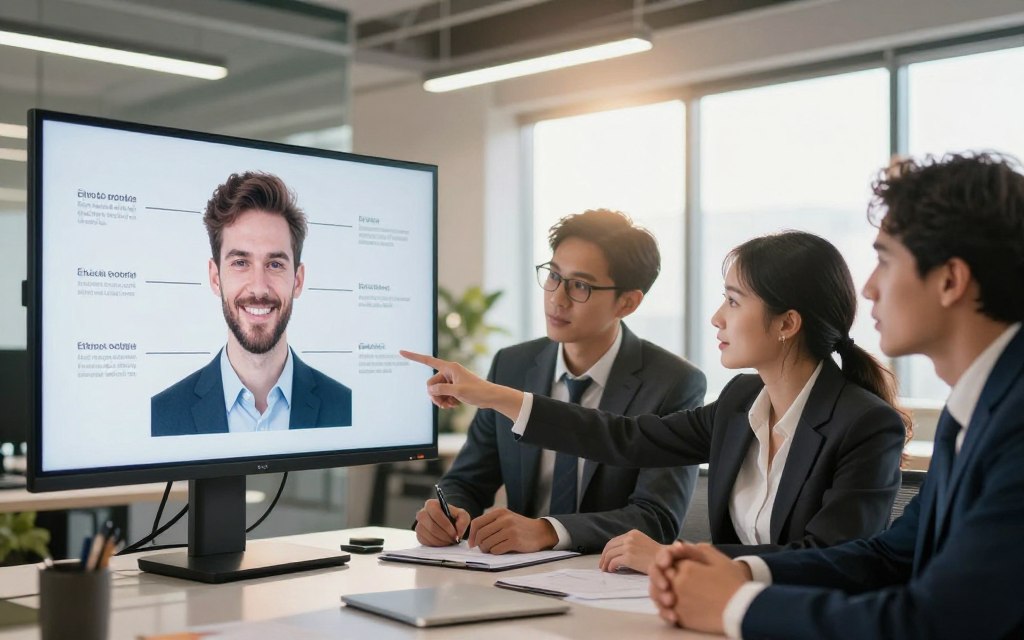
With these safety measures, you’re the last line of defence. It’s up to you to know when to stop. The table below helps you decide what’s okay and what’s not.
| Scenario | Intent | Ethical Consideration |
|---|---|---|
| Swapping faces with a historical painting for a school project. | Educational, creative commentary. | Generally harmless. The subject is not a living private individual, and the use is transformative. |
| Creating a funny meme with a celebrity’s face on a cartoon character for social media. | Humour, parody. | Typically falls under fair use or parody, but should not be malicious or defamatory. |
| Placing a colleague’s face on an unflattering or inappropriate body without their knowledge. | Mockery, harassment. | Unethical. Violates consent, can constitute bullying, and may create a hostile environment. |
| Fabricating a photo of a private individual in a compromising situation. | Deception, character assassination. | Deeply unethical and potentially illegal. Could be defamation and cause severe emotional distress. |
AI face swap technology is powerful. Used right, it’s amazing. But, always think about ethics and consent. This way, your creations can bring joy and innovation without causing harm.
How AI Remaker Compares to Other Face Swap Applications
Exploring the world of face swap tools can be tricky. It’s important to find one that balances power, freedom, and privacy well. AI Remaker shines in this competitive field.
Many face swap apps and websites have big drawbacks. They often put watermarks on free photos, limit swaps, and worry users about their data. AI Remaker fixes these issues, making it a top choice for users.
Users love AI Remaker for its ease and quality. One user said it’s “the easiest, most efficient, exact, most accurate face & at last a multiple swap app.” This shows AI Remaker’s commitment to delivering great results without hassle.
The table below compares AI Remaker with other popular tools.
| Feature | AI Remaker | Typical Free Online Tool | Popular Mobile App |
|---|---|---|---|
| Watermark on Free Tier | No | Yes | Yes |
| Swap Limits | Unlimited | Limited (e.g., 3-5 per day) | Limited, requires subscription |
| Batch Processing | Yes | Rarely | No |
| AI Talking Photo Feature | Yes | No | No |
| Privacy Stance | Strong; images not stored | Varies, often unclear | Data may be used for marketing |
AI Remaker stands out because it doesn’t watermark free photos. This lets users use their work freely. It also offers unlimited swaps for endless creativity.
Its batch processing feature is a game-changer. It saves a lot of time for users working with many images. This is a rare feature in easy-to-use platforms.
The AI talking photo feature is also unique. It adds animation and speech to swapped faces. This turns a simple trick into a tool for creative stories and engaging content.
AI Remaker also prioritises privacy. It doesn’t store user images, giving users peace of mind. This ethical stance is a big plus over apps with unclear data policies.
“The easiest, most efficient, exact, most accurate face & at last a multiple swap app.”
In short, AI Remaker is a top choice for face swap online needs. It offers high accuracy, a generous free model, unique features like AI talking photo, and a strong privacy stance. It’s perfect for both fun and serious creative projects.
Conclusion
The AI Remaker face swap tool is a top choice for changing digital faces. This guide showed how it can alter images and videos with great detail. It also supports swapping many faces at once and keeps video quality high.
Getting good results starts with the right photos. Choose high-quality images for the best results. Then, use advanced tools for masking and lighting to get professional-looking swaps. An outside review says Remaker AI is a great choice for free face swapping, perfect for videos without a watermark.
This technology lets you create amazing things. You can mix up history or make your family album more fun. But, remember to use it wisely. Always think about who you’re swapping faces with and why.
Now you know how to use face swapping to its fullest. The AI Remaker platform is a great tool for both fun and serious digital art.

 By
By